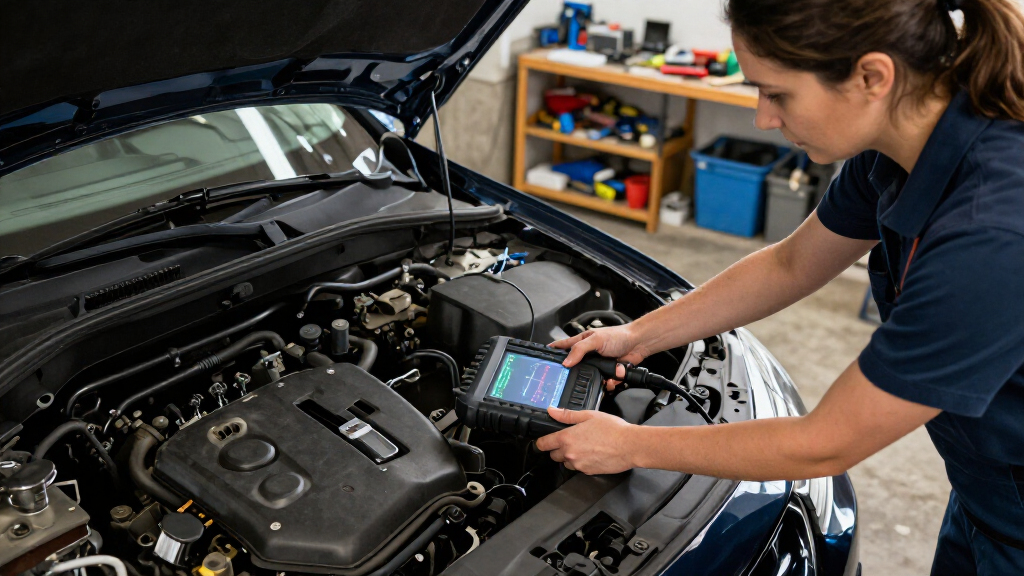

Use this guide to connect a car diagnostic scan tool, read and save diagnostic trouble codes, and decide what to check next. It is for drivers with little or no diagnostic experience. Allow 15–30 minutes, depending on how quickly you can find the vehicle’s diagnostic port and read the tool’s instructions. A scan identifies information reported by vehicle systems; it does not by itself prove which part has failed.

Get business pricing on garage and car supplies
- Business-only prices and quantity discounts
- Tax-exempt purchasing
- Multiple users, one account, clear invoices

FOXWELL NT604 Elite OBD2 Scanner for ABS, SRS, Engine, and Transmission
- ✔ Brand / model: FOXWELL NT604 Elite
- ✔ Diagnostic systems: Engine, ABS, SRS, and transmission
- ✔ Functions: Live data, DTC library, data playback and printing, I/M readiness

FOXWELL NT301 OBD2 Diagnostic Scanner with Live Data
- ✔ Brand / model: FOXWELL NT301
- ✔ Screen: 2.8-inch color display
- ✔ Diagnostics: Engine fault codes, live data, I/M readiness, supported EVAP and oxygen sensor tests

ANCEL AD310 OBD II Car Code Reader and Diagnostic Scanner
- ✔ Brand / model: ANCEL AD310
- ✔ Vehicle compatibility: 1996+ US vehicles; 2000+ EU and Asian vehicles, subject to OBD II compatibility
- ✔ Supported protocols: KWP2000, J1850 VPW, ISO9141, J1850 PWM, CAN
Difficulty: Beginner | Time: 15–30 minutes
What You’ll Need
Tools & Materials:
- An OBD-II or EOBD scan tool compatible with your vehicle
- Your vehicle owner’s manual
- A phone or notebook to record codes and observations
- A well-lit, stationary place to park
Knowledge:
- Basic ability to follow the scan tool’s instructions
- Ability to locate the vehicle’s ignition controls and diagnostic port using the owner’s manual
Most gasoline cars sold in the United States from model year 1996 onward support OBD-II. EOBD coverage and supported functions vary by region, vehicle, and year. Check the scan tool’s compatibility information before connecting it. A basic tool may only read emissions-related engine codes; manufacturer-specific systems such as airbags, ABS, or transmission controls may need a more capable scanner.
FOXWELL NT604 Elite OBD2 Scanner for ABS, SRS, Engine, and Transmission
The NT604 Elite earns the top spot because it can check four supported systems: engine, ABS, SRS, and transmission. That makes it a better fit than the NT301 or AD310 when a warning light or drivability concern may involve more than emissions-related engine faults. Its live data, onboard fault-code library, and data playback and printing also give us more context than a code alone.That wider reach has limits. Coverage varies by vehicle, and an advertised system list does not guarantee every function on every car. It reads and clears supported codes, but it does not repair faults or perform service procedures such as oil reset, battery registration, ABS bleeding, or relearns. It also cannot clear crash-related SRS data. Compared with the NT301, it is the more versatile diagnostic choice; compared with a true service tool, it remains focused on checking faults. We should confirm our vehicle’s supported systems before choosing it.
Pros:
- Scans supported engine, ABS, SRS, and transmission systems
- Includes live data, a code library, and data playback and printing
- AUTOVIN support and lifetime software updates
- Protective case and preloaded software support a straightforward setup
Cons:
- System and AUTOVIN support vary by vehicle
- Does not perform service functions such as oil reset or ABS bleeding
- Cannot clear crash-related SRS data or fix the underlying fault
Best for: Owners who want one handheld scanner for supported engine, ABS, SRS, and transmission fault checks.
Not ideal for: Buyers who need maintenance resets, ABS bleeding, key programming, guaranteed coverage for a particular vehicle, or repair capability.
Bottom line: Choose the NT604 Elite when you need broader system checks than either engine-only scanner provides and your vehicle is supported.
“Choose the NT604 Elite when you need broader system checks than either engine-only scanner provides and your vehicle is supported.”
FOXWELL NT301 OBD2 Diagnostic Scanner with Live Data
For owners who want more than a stored code but do not need ABS or airbag coverage, the NT301 is the most capable engine-focused pick in this group. It reads and clears engine faults, graphs and logs live sensor data, and checks I/M readiness. Those graphs can help us see how sensor readings change as the engine runs; the AD310 displays live data and freeze-frame information, but this model adds a more visual way to follow it. Its 2.8-inch color screen and one-click readiness check make routine checks easier to scan at a glance.The NT301 remains an OBD II engine scanner, not a full-system diagnostic platform. It does not provide dedicated ABS, SRS, or TPMS diagnostics, and it lacks manufacturer-specific scans, service resets, and key programming. The NT604 Elite is the stronger choice if we need multiple systems; the NT301 makes more sense if our main priorities are engine codes and readable sensor data. Compatibility, including EVAP and oxygen sensor test availability, depends on the vehicle, so those capabilities should not be assumed for every car.
Pros:
- Reads and clears engine fault codes
- Graphs and logs live sensor data
- One-click I/M readiness check with color indicator and audio feedback
- Daylight-readable color screen and vehicle-powered setup
Cons:
- Does not provide dedicated ABS, SRS, or TPMS diagnostics
- No full-system manufacturer-specific scans, service resets, or key programming
- Compatibility and EVAP test availability vary by vehicle
Best for: Owners diagnosing engine warning lights who want graphable live sensor readings and a clear readiness check.
Not ideal for: Buyers who need ABS, SRS, TPMS, transmission scans, manufacturer-specific functions, or maintenance resets.
Bottom line: Pick the NT301 over the AD310 when graphing engine data matters, while recognizing that it cannot match the NT604 Elite’s system coverage.
“Pick the NT301 over the AD310 when graphing engine data matters, while recognizing that it cannot match the NT604 Elite’s system coverage.”
ANCEL AD310 OBD II Car Code Reader and Diagnostic Scanner
The ANCEL AD310 is the straightforward choice for checking whether an OBD II engine warning is tied to an emission-related fault. It reads and clears those codes, displays live data and freeze-frame information, and checks I/M readiness. The readiness check can help us understand whether a vehicle’s emissions monitors report as ready; freeze-frame information records conditions around a fault. Its labeled buttons and large screen keep the basic workflow simple, while its compact form and 2.5-foot cable make it easy to keep near the driver’s seat.Its narrow scope is also the reason it ranks behind the NT301 and NT604 Elite. The AD310 does not diagnose ABS, SRS, transmission, or other non-emission systems, and it offers no graphing or logging like the NT301. It is the sensible fit when we want essential engine-code checks without paying for capabilities we will not use, but the NT301 is more useful when sensor trends matter. The tool requires an OBD II-compatible vehicle; an adapter does not make it work with OBD I cars. We should verify model-year and protocol compatibility before relying on it.
Pros:
- Reads and clears emission-related engine trouble codes
- Shows live data, freeze-frame information, and I/M readiness
- Supports common OBD II protocols
- Compact design with a large screen and clearly labeled buttons
Cons:
- Limited to emission-related engine diagnostics
- Does not scan ABS, SRS, transmission, or other non-emission systems
- Does not work with OBD I vehicles, even with an adapter
Best for: Drivers who want a compact, uncomplicated reader for emission-related engine codes, freeze-frame data, and readiness checks.
Not ideal for: Owners who need ABS, SRS, transmission, OBD I, graphing, or manufacturer-specific diagnostics.
Bottom line: Choose the AD310 for basic OBD II engine checks; step up to the NT301 for graphing or the NT604 Elite for broader system coverage.
“Choose the AD310 for basic OBD II engine checks; step up to the NT301 for graphing or the NT604 Elite for broader system coverage.”
As an Amazon Associate we earn from qualifying purchases.
Before You Start
Park on level ground, select Park or Neutral as appropriate, apply the parking brake, and switch off the engine. Keep clear of moving parts and hot surfaces. If the vehicle is running rough, overheating, losing oil pressure, or showing a flashing check-engine light, stop driving when safe and seek professional help; a scan does not make the vehicle safe to drive. Do not clear codes before recording them, because doing so may erase useful diagnostic information and reset emissions readiness monitors.
Step-by-Step Instructions
Step 1: Check the vehicle and tool match
Compare the scan tool’s supported vehicles and functions with your vehicle’s year, make, model, and market. Read the tool’s quick-start instructions, and check whether it requires an app, a charged battery, or an account. If you are using a phone-based adapter, install the recommended app before connecting the adapter.
Tip: A connector that fits the port does not mean the tool supports every system in the vehicle. Confirm function support in the tool documentation.
Check: The tool powers on or its app is ready, and its documentation lists your vehicle or its OBD-II/EOBD standard.
Step 2: Locate the diagnostic port
Find the diagnostic port, also called the data link connector, by checking the owner’s manual. Inspect the area with a light; the port is often under the dashboard near the steering column, but its position varies. Check that the port is accessible and free of visible damage.
Tip: Do not force the tool into the connector. The plug should align with the port and seat without excessive pressure.
Check: You have identified a matching 16-pin port and can reach it without pulling on wiring or removing panels.
Step 3: Connect the scan tool
Keep the ignition off unless the tool’s instructions say otherwise. Align the tool’s plug with the port and push it in gently. For a wireless adapter, connect it securely, then pair it with the phone using the app’s instructions. Keep the vehicle stationary while you work.
Tip: Avoid leaving an adapter plugged in after the scan. Some adapters draw power while parked.
Check: The scanner powers on, or the app shows that it has connected to the adapter. If it does not, stop and check the plug orientation and tool instructions before trying again.
Step 4: Turn the ignition to the correct position
Set the ignition to the position requested by the scan tool. Many scans require the ignition on with the engine off. In a push-button vehicle, this may mean pressing the start button without pressing the brake; the exact sequence varies by vehicle. Do not start the engine unless the tool requests it and the vehicle is safe to run.
Tip: If the dashboard remains dark, the ignition may still be off. If the engine starts, switch it off when safe and consult the vehicle manual for the correct accessory or ignition-on procedure.
Check: The dashboard is powered as instructed, and the scan tool can communicate with the vehicle.
Step 5: Run a code scan
Select the tool’s option to scan, read codes, or retrieve diagnostic trouble codes. Choose the vehicle system if prompted, then wait for the scan to finish. Read any instructions on screen and do not disconnect the tool during communication.
Tip: Some tools show more than one code category, such as stored, pending, and permanent. Record each category as displayed instead of treating them as interchangeable.
Check: The tool displays a completed scan, a list of codes, or a clear message that no codes were found.
Step 6: Record codes and vehicle symptoms
Write down each code exactly as shown, including letters, digits, and whether it is stored, pending, or permanent. Save or photograph the screen if the tool allows it. Record the date, mileage, warning lights, recent repairs, and when the symptom occurs, such as during a cold start or acceleration.
Tip: A code often points to a circuit or condition, not a confirmed faulty part. Preserve the original reading for anyone who diagnoses the vehicle later.
Check: You have a complete record of the codes and the conditions that may help explain them.
Step 7: Review the code before acting
Check a reliable service source for what the code means on your specific make, model, year, and engine; use the tool’s description as a starting point. Identify whether the code concerns a sensor reading, system performance, or an electrical circuit. Do not order parts based on a code description alone; related wiring, connectors, leaks, or other faults can produce similar results.
Tip: If the code concerns brakes, airbags, steering, fuel leaks, or another safety-related system, arrange a qualified inspection instead of relying on a basic engine-code scanner.
Check: You can explain what system the code concerns and have a sensible next diagnostic check, or know that a qualified technician is needed.
Step 8: Choose whether to clear codes
Leave the codes in place if the cause has not been diagnosed or repaired. After a repair, save all results and follow the tool’s instructions before using its clear-codes command to check whether the warning returns. Remember that clearing codes may turn off a warning temporarily and reset readiness monitors; it does not repair the cause.
Tip: A vehicle may need normal driving cycles after codes are cleared before its emissions monitors are ready for inspection. Follow local inspection requirements.
Check: You have kept the original diagnostic record, and you have cleared codes only when there is a clear reason to do so.
Step 9: Disconnect and restore the vehicle
Switch the ignition off when the scan is complete. Unplug the tool by gripping its connector, not its cable, and put it away. If you used a phone app, close the connection as directed. Check that no tools or cables remain near the pedals or driver’s controls before driving.
Tip: If the scanner reports an error, note the exact message before disconnecting; it can help identify a compatibility or communication issue.
Check: The scanner is disconnected, the dashboard is in its normal state, and the vehicle area is clear.
Common Mistakes to Avoid
- Clearing codes before writing them down. — Record every code and its status before using any clear or reset function.
- Replacing a part because its name appears in a code description. — Treat the code as a diagnostic lead. Check vehicle-specific service information and inspect related wiring, connectors, and conditions before choosing a repair.
- Assuming a basic scanner can read ABS, airbag, or every manufacturer-specific system. — Check the tool’s system coverage for your vehicle before relying on it for those systems.
- Leaving a wireless adapter plugged in after the scan. — Remove it when finished unless the manufacturer confirms that it is safe to leave connected.
Troubleshooting
Problem: The scan tool does not power on.
Solution: Check that the connector is fully seated and the ignition is in the position specified by the tool. Consult the vehicle manual for the port location and fuse information. Do not probe or short the connector pins.
Problem: The tool powers on but cannot communicate with the vehicle.
Solution: Confirm vehicle compatibility and ignition state, then disconnect and reconnect the tool once. If the error continues, record its wording and contact the tool maker or a repair shop; a vehicle power, wiring, or communication fault may need diagnosis.
Problem: The tool finds no codes, but a warning light is on.
Solution: Check whether the tool supports the system showing the warning and whether the vehicle is in the required ignition state. A basic OBD-II scan may not read ABS, airbag, or manufacturer-specific codes. Use a compatible scanner or arrange a professional scan.
Problem: The code returns after it was cleared.
Solution: The underlying condition may still be present, or the vehicle may have detected it again during a drive cycle. Save the returning code and have the cause diagnosed; repeated clearing will not fix it.
What Success Looks Like
The scan is complete when you have retrieved the available codes or received a clear no-code result, saved the code details and vehicle symptoms, and disconnected the tool safely. You should understand that the code identifies a reported condition rather than proving which part failed. If the warning concerns a safety system, the vehicle behaves abnormally, or the same code returns, arrange diagnosis before relying on the vehicle.
Next Steps
Keep your scan notes with the vehicle’s maintenance records. Use vehicle-specific service information or a qualified technician to confirm the cause before replacing parts. After a repair, scan again if appropriate and watch for the warning or symptoms to return. Follow local inspection rules if codes were cleared, since readiness monitors may need time and normal driving to reset.
Frequently Asked Questions
Can I use a scan tool while the engine is running?
Many basic code scans work with the ignition on and engine off. Some live-data checks require the engine to run. Follow the scanner’s instructions, keep clear of moving and hot parts, and do not run the engine if the vehicle is unsafe.
Will a scan tool tell me exactly which part to replace?
Usually not. A trouble code reports a fault or condition detected by a vehicle system. A technician may need to test wiring, connectors, measurements, and related components to identify the actual cause.
Does clearing a code fix the problem?
No. Clearing removes stored information and may turn off a warning temporarily. If the fault remains, the code or warning can return. Save the scan results and diagnose the cause before clearing.
Why does my scanner show no code when a warning light is on?
The scanner may not support the system or manufacturer-specific codes behind that warning. Check the tool’s coverage for your vehicle, or use a scanner that can access the relevant system.